If you’ve ever built a model from Lego bricks, you’re well prepared to start building real ASP.NET web pages. ASP.NET offers features that allow web developers to build parts of web pages independently, then put them together later to form complete pages.
The content we’re creating through our work with ASP.NET is almost never static. At design time, we tend to think in terms of templates that contain placeholders for the content that will be generated dynamically at runtime. And to fill those placeholders, we can either use one of the many controls ASP.NET provides, or build our own.
In this chapter of the fabulous new edition of Build Your Own ASP.NET 3.5 Web Site Using C# & VB, we’ll discuss many of the objects and techniques that give life and color to ASP.NET web pages, including:
Showing posts with label Visual Studio. Show all posts
Showing posts with label Visual Studio. Show all posts
Tuesday, September 7, 2010


Monday, August 23, 2010
Passwords Security in Your Database
When ASP.NET developers think of Web security and
authentication, three options typically come to mind: Windows
authentication, forms authentication, and passport authentication.
If you're building an Intranet application within your organization, for instance, you might choose to use Windows authentication. Configuring Windows authentication within IIS is fairly straight forward and involves only two steps.
First, we make sure that Integrated Windows Authentication is checked and Anonymous Access is unchecked for a Web application by following the steps outlined below:
If you're building an Intranet application within your organization, for instance, you might choose to use Windows authentication. Configuring Windows authentication within IIS is fairly straight forward and involves only two steps.
First, we make sure that Integrated Windows Authentication is checked and Anonymous Access is unchecked for a Web application by following the steps outlined below:
- Right-click on the Web app directory within IIS and select Properties.
- Select the Directory Security tab from the application's Properties dialog.
- Select the Edit… button within the Anonymous Access and Authentication control panel.
- Uncheck Anonymous Access and make sure that Integrated Windows Authentication is checked similar to the figure below.
Wednesday, August 18, 2010
Speed Up Your Site! 8 ASP.NET Performance Tips (part 6)
Lack of Indexes
The ability to index data is one of the key benefits of storing information in a database. Imagine for a moment that you need to look up a name in a telephone book. You take advantage of the fact that the last names are sorted in alphabetic order -- it would take forever to find a name if the entries were listed in random order. Databases take advantage of the way your information is sorted for the same reason. The default sort order in a table is called a clustered index.
The ability to index data is one of the key benefits of storing information in a database. Imagine for a moment that you need to look up a name in a telephone book. You take advantage of the fact that the last names are sorted in alphabetic order -- it would take forever to find a name if the entries were listed in random order. Databases take advantage of the way your information is sorted for the same reason. The default sort order in a table is called a clustered index.
Speed Up Your Site! 8 ASP.NET Performance Tips (part 5)
How can I gain more control over the ASP.NET cache?
As we've seen, declarative caching provides a great return on
investment -- it's very easy to enable, and will give you some
immediate performance benefits. However, you can gain even more benefit
from the ASP.NET cache with only a little more work.
Speed Up Your Site! 8 ASP.NET Performance Tips (part 4)
How can I improve the speed of my site?
Most ASP.NET web servers perform a lot of unnecessarily repetitive work.For example, suppose you have a page with a DataGrid bound to a table called Products. Every time a user requests the Products page, ASP.NET has to:
- Look up the products data in the database.
- Process the page.
- Databind the product data.
- Render the results to HTML.
- Output the results to the browser.
Tuesday, August 17, 2010
Speed Up Your Site! 8 ASP.NET Performance Tips (part 3)
How can I decrease the bandwidth that my site uses?
ASP.NET abstracts a lot of traditional web development details from
the developer. Just drag and drop a few controls on a form, set some
properties, write a little bit of code, and -- bam! -- you've got a
functioning web site.
However, that doesn't mean the resulting HTML markup will
necessarily be efficient or small. It's not unusual to see ASP.NET
pages that contain more than 100 kilobytes of markup. I recommend that
you keep a close eye on the HTML markup that results from your ASP.NET
web pages -- to keep these file sizes in check can sometimes require
additional effort, which is one reason we covered the topic of web
standards in Chapter 9, ASP.NET and Web Standards.
Speed Up Your Site! 8 ASP.NET Performance Tips (part 2)
How can I decrease the size of the view state?
One convenience of ASP.NET controls is that they can preserve state
across postbacks -- a topic we've covered in depth in Chapter 6,
Maintaining State. This, of course, is a feature that comes at a price
-- to implement it, we add a hidden field to the page to store the
control settings for transmission between the client and server, but
depending on the controls the page uses, the view state can sometimes
become quite large.
One obvious way to reduce the size of view state is to turn it off
if you don't need it. This adjustment can be performed either at the
page level, or at the control level. If, for whatever reason, you can't
disable the view state (for example, your page uses controls that are
dependent upon the view state), there are a few other steps you can
take to at least reduce its impact on your page size.
Speed Up Your Site! 8 ASP.NET Performance Tips (part 1)
Now that you've added the finishing touches to your web site
and unleashed it onto the world, fame, fortune, and success will surely
follow -- won't it?
Unfortunately, your web application's success can lead to something
less desirable -- performance and scaling problems. On a traditional
desktop application, one thousand users translate to one thousand
client computers chugging away, sharing the load of running your
application. The application is effectively spread among all the users'
machines. When it comes to a web application, though, those same
thousand users are usually serviced by a single machine -- your web
server.
Success can come at a cost for web applications: a cost in bandwidth
and server hardware. However, there are a few clever ways you can
reduce -- and sometimes eliminate -- these problems. We'll take a look
at some of the different approaches to improving the performance of an
ASP.NET site in this chapter, which has been extracted from The ASP.NET 2.0 Anthology, 101 Essential Tips, Tricks & Hacks. Feel free to download this chapter -- along with three others -- for offline reference.
Thursday, August 5, 2010
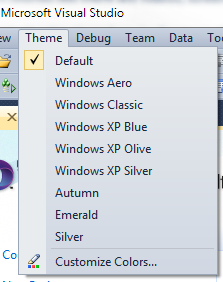
Making Visual Studio 2010 IDE colors look like Visual Studio 2008
 Personally, I like the new Visual Studio 2010 IDE colors but I got this comment recently from a helpful reader:
Why did the default colour theme for VS 2010 have to be so hideously ugly? Why put all that work into making the most advanced IDE ever, and then present it with a look that screams "we didn't care?" ... An official facelift patch would be nice, if just the 2008 look was applied to 2010.Well, each to is own. Just like Henry Ford said, "You can have any color you want as long as it's black." Seriously, though, you can change the colors if it makes you happy. Folks feel strongly about their colors, like our friend above.
There's a free Visual Studio Color Theme Editor by Matthew Johnson that you can download and modify the VS IDE theme however you like. Once you've installed it (it's a VSIX - an extension to VS2010 - not an MSI, so don't be scared) there will be a new menu in VS called "theme."
Here's the built in themes. Remember these are VS themes, not Windows themes, so they won't affect Windows colors. Also, this is changing the colors of the IDE itself, not the text editor. You can choose your text styles at http://studiostyles.info.
Wednesday, August 4, 2010
Exploring the Singleton Design Pattern
Introduction
In the course of developing software applications, repetitive patterns emerge as the application is developed. As whole software systems are developed, many of these same patterns become evident at scale.This concept of repetitive pattern is evident in other applications. One such application is automobile manufacturing. Many different automobile models share the same sub-assemblies from the most basic components, such as light bulbs and fasteners, to larger assemblies, such as chassis and engines.
In homebuilding, the repetitive pattern concept applies to screws and nails as well as to whole building electrical distribution systems. Whether a team is assembled to create a new automobile or a new building design, it usually does not have to ponder problems that were solved before. If a team assigned to design and build a house had to rethink and design every single component of the house, the whole process would take much longer than it currently does. Design decisions such as the height of a door or the function of a light switch are well understood. A house designer does not have to redesign and reconstruct a different type of device to deliver and collect water in order to meet a requirement to supply hand washing functionality to different parts of the house: a standard sink, as well as a standard interface of hot and cold water inputs and drain water output, are well understood components of house construction. The repetitive pattern concept can be applied over and over to nearly everything we surround ourselves with, including software.
Tuesday, August 3, 2010
Remove empty lines in Visual Studio
Visual Studio has ability to delete empty lines in
replace operation using regular expressions.
1. Click Ctrl-H (quick replace)All empty lines will be deleted.
2. Check "Use Regular Expressions"
3. In Find type ^$\n
4. In Replace box set empty.
5. Click "Replace All"
Regular
expression for empty line consist of
| Beginning of line ^ | ||
| End of line $ |
| Line break \n |
Monday, August 2, 2010
Speed Optimization in ASP.NET 2.0 Web Applications
Overview
Developing a web application that responds to users requests
quickly is a target and a challenge for all web developers.
ASP.NET was designed with speed optimization and performance improvements in
mind. The set of enhancements like: Pages compilation, and Automatic storage on
the server are new to ASP.NET.
However, these enhancements are not enough to protect you from slow performance
when a large number of http requests are simultaneously processed by your
web application.
To write a well performing web application you must make a
balance between four common performance measures. These measures are:
Execution Time: It is the time taken to process a request.
This is
measured as the time elapsed between the first byte received from the server and
the last one.
Response Time: It is the time between issuing
a request and the first
byte received as a response from the server.
Scalability: It measures the performance of a web application against
resources (memory, processors, or computers) allocated for it.
Throughput: It is the number of requests your application can serve in a
time unit, usually a second.
What follows is a list of areas that you can invoke to
harvest for techniques that you can use to
develop a high performance ASP.NET application.
Friday, July 23, 2010
Beginners Guide’s to ASP.NET MVC Framework
Introduction
This article is the Part 1 of the ASP.NET MVC Framework series. In this article I have describes very basic over view of MVC Framework and the control flow of MVC. I will write a few articles in this series which will help all the beginners to move ahead. This article is only about what MVC is.Overview
The Model-View-Controller (MVC) design pattern is an architectural design patterns for any standard development that separates the components of an application. This allows application to handle very flexible and extensible and easy to handle. ASP.NET MVC Framework is also one of the standard web development frameworks which separate the components of web development application different components. ASP.NET MVC Framework having three main componentsTuesday, July 20, 2010
Upgrading VS 2005 Web Site Projects to be VS 2005 Web Application Projects
he below tutorial helps explain how you can migrate existing VS 2005 Web Site Projects to use the new VS 2005 Web Application Project option. Please make sure that you have already completed Tutorials 1-6 on this site first, as this will help provide you with context about how the VS 2005 Web Application Project model works.
Note: If you want to migrate an existing VS 2003 Web Project to use the VS 2005 Web Application Project option, you should read this tutorial here.
Note: the sample I am using with the migration steps below is the Personal Starter Kit that ships with Visual Studio (if you want to follow along exactly, you can choose File->New Web Site to create the VS 2005 Web Site Project version of it).
Note: If you want to migrate an existing VS 2003 Web Project to use the VS 2005 Web Application Project option, you should read this tutorial here.
Migrating from VS 2005 Web Site Projects to VS 2005 Web Application Projects
Please follow the below steps in exact order. If you have problems using the below steps, please post in this forum and VS team members will be able to help.Note: the sample I am using with the migration steps below is the Personal Starter Kit that ships with Visual Studio (if you want to follow along exactly, you can choose File->New Web Site to create the VS 2005 Web Site Project version of it).
VS 2005 Web Application Project Release Candidate Now Available
What is new with today’s release?
Today’s release is a major refresh that provides a ton of new functionality and rounds out the feature-set. Some of the major new features added since the February preview:
- Event handler generation and wire-up from the WYSIWYG designer
- F7/Shift-F7 Navigation Support (switch between page views)
- Add New Item Wizard to add pages based on Master Pages (easily pick master)
- Richer Publishing Support
- Connection String and Settings Support in Web.Config
- Resources and .Resx Resource Editor Support
- Support for building multi-project applications and sub-web projects
- .ASPX files no longer locked when debugging
- Support for root-path based image and stylesheets (/images/foo.jpg)
- Control Registrations within Web.Config files
- Web Service Cross-Project Reference Support
- Section 508 and WCAG Accessibility Checker Support
- Ability to create an IIS Vroot/Application setting within Project Dialog
- SQL DataSource Control Support
- ASP.NET Custom Folder Templates
- Component Designer Support
- Support to Drag/Drop User Controls, StyleSheets, Images from Solution Explorer to designer
- New Web Service Project Template
- SQL Express Support
Upgrading VS 2003 Web Projects to be VS 2005 Web Application Projects
The below tutorial helps explain how you can now use the VS 2005 Web Application Project to more easily migrate existing web projects in VS 2003 to VS 2005.
An alternative (and now much easier) approach, is to migrate a VS 2003 Web Application Project to use the VS 2005 Web Application Project option instead. The VS 2005 Web Application Project model uses the same conceptual approach as VS 2003 (project file to include/exclude files, and compilation to a single assembly, etc), and so doesn't require any architectural changes (the only things that might impact you are deprecated API warnings -- which can optionally be ignored -- and/or language changes).
Once VS 2005 Web Application Project RC1 is installed, the default migration wizard in VS 2005 is to migrate VS 2003 Web Projects to VS 2005 Web Application Projects. This model is much less invasive and requires fewer changes.
Migrating from VS 2003 to VS 2005 using the Web Application Project
There are a couple of different strategies you can take when migrating a VS 2003 Web Project to VS 2005. One option (which is the default with the shipping VS 2005 bits) is to migrate the project to use the new VS 2005 Web Site project model. For more information click hereAn alternative (and now much easier) approach, is to migrate a VS 2003 Web Application Project to use the VS 2005 Web Application Project option instead. The VS 2005 Web Application Project model uses the same conceptual approach as VS 2003 (project file to include/exclude files, and compilation to a single assembly, etc), and so doesn't require any architectural changes (the only things that might impact you are deprecated API warnings -- which can optionally be ignored -- and/or language changes).
Once VS 2005 Web Application Project RC1 is installed, the default migration wizard in VS 2005 is to migrate VS 2003 Web Projects to VS 2005 Web Application Projects. This model is much less invasive and requires fewer changes.
Upgrading VS 2003 Web Projects to be VS 2005 Web Application Projects
The below tutorial helps explain how you can now use the VS 2005 Web Application Project to more easily migrate existing web projects in VS 2003 to VS 2005.
An alternative (and now much easier) approach, is to migrate a VS 2003 Web Application Project to use the VS 2005 Web Application Project option instead. The VS 2005 Web Application Project model uses the same conceptual approach as VS 2003 (project file to include/exclude files, and compilation to a single assembly, etc), and so doesn't require any architectural changes (the only things that might impact you are deprecated API warnings -- which can optionally be ignored -- and/or language changes).
Once VS 2005 Web Application Project RC1 is installed, the default migration wizard in VS 2005 is to migrate VS 2003 Web Projects to VS 2005 Web Application Projects. This model is much less invasive and requires fewer changes.
Please follow the below steps in exact order. If you have problems using the below steps, please post in this forum and VS team members will be able to help.
Migrating from VS 2003 to VS 2005 using the Web Application Project
There are a couple of different strategies you can take when migrating a VS 2003 Web Project to VS 2005. One option (which is the default with the shipping VS 2005 bits) is to migrate the project to use the new VS 2005 Web Site project model. For more information click hereAn alternative (and now much easier) approach, is to migrate a VS 2003 Web Application Project to use the VS 2005 Web Application Project option instead. The VS 2005 Web Application Project model uses the same conceptual approach as VS 2003 (project file to include/exclude files, and compilation to a single assembly, etc), and so doesn't require any architectural changes (the only things that might impact you are deprecated API warnings -- which can optionally be ignored -- and/or language changes).
Once VS 2005 Web Application Project RC1 is installed, the default migration wizard in VS 2005 is to migrate VS 2003 Web Projects to VS 2005 Web Application Projects. This model is much less invasive and requires fewer changes.
Please follow the below steps in exact order. If you have problems using the below steps, please post in this forum and VS team members will be able to help.
Creating and Using User Control Libraries - Tutorial 6
The below tutorial demonstrates how to create and use separate user-control library projects with VS 2005 Web Application Projects. Please make sure that you have already completed Using Master Pages and Site Navigation - Tutorial 5 before reviewing this one.
What this tutorial will cover is how you can also use VS 2005 Web Application projects to create re-usable libraries of user-controls that are potentially referenced and pulled-in from multiple web projects. This provides additional re-use flexibility with large-scale web-projects, and with VS 2005 Web Application Projects is now easier than it was with VS 2003.
Why Create a User-Control Library
Adding a user-control into an existing web application project is very easy. Simply right-click on the project and choose the "Add New Item" menu item and pick the "Web User Control" template.What this tutorial will cover is how you can also use VS 2005 Web Application projects to create re-usable libraries of user-controls that are potentially referenced and pulled-in from multiple web projects. This provides additional re-use flexibility with large-scale web-projects, and with VS 2005 Web Application Projects is now easier than it was with VS 2003.
Using Master Pages and Site Navigation - Tutorial 5
The below tutorial demonstrates how to create and use the new ASP.NET Master Pages and Site Navigation features within VS 2005 Web Application Projects. Please make sure that you have already completed Data Binding against Objects -Tutorial 4 before reviewing this one.
Add a Master Page to the Web Project
Right-click on the project and select Add->Add New Item to add a new MasterPage called "Site.Master" to the project:Data Binding against Objects - Tutorial 4
The below tutorial demonstrates how to build ASP.NET Pages that databind against Objects within VS 2005 Web Application Projects. Please make sure that you have already completed Building Pages with VS 2005 Web Application Projects -Tutorial 3 before reviewing this one.
Adding Classes to the Web Project
In this sample we'll be data-binding a GridView control on a page to a set of classes in our web application project.
Subscribe to:
Posts (Atom)